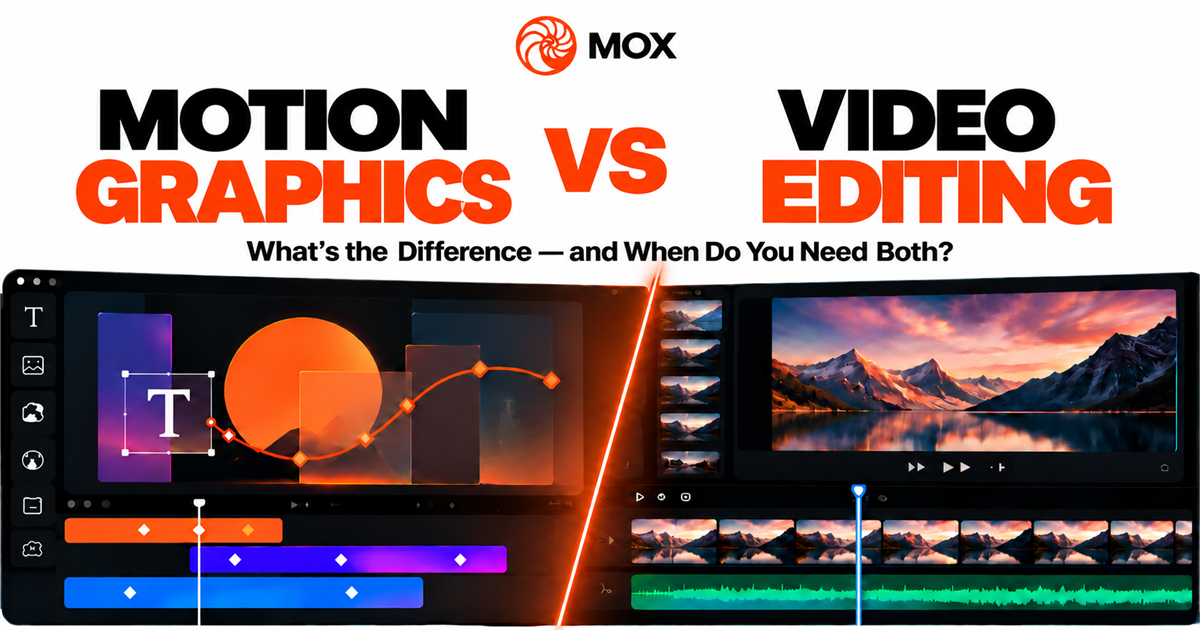
Motion graphics animate designed graphic elements such as text, shapes, logos, interface elements, titles, and visual data. Video editing primarily selects, trims, sequences, and refines footage, audio, and other media over time. They are different disciplines, but real projects often combine both: a video can use edited footage alongside animated titles, callouts, and transitions.
Motion graphics: what it controls
Motion graphics often focus on designed elements such as text, shapes, and graphics, although they can also incorporate footage. A designer might animate a headline, introduce a logo, reveal a chart, or guide attention through an interface demonstration.
The work is usually organised through layers and a timeline. Layers keep text, shapes, logos, images, and other elements separate. The timeline determines when each layer appears and how long it remains visible. Keyframes record values for properties at particular points in time, such as Position, Scale, Rotation, or Opacity. When two keyframes have different values, software can interpolate a change between them; timing and easing shape how that change begins, moves, and ends.
Motion graphics are commonly used for title sequences, lower thirds, logo animation, animated explainers, visual data, product graphics, social posts, and UI demonstrations. The emphasis is on the movement and hierarchy of designed information.
Video editing: what it controls
Video editing starts with recorded or rendered media. Its core task is to turn separate shots, clips, audio, and other material into a coherent sequence.
An editing workflow can include choosing the useful parts of footage, arranging clips, setting the pace of cuts, balancing audio, placing transitions, and shaping a narrative or explanation. Timing matters here too, but it often concerns the order and duration of shots rather than the movement of a graphic property.
Video editing is used for interviews, documentaries, tutorials, product footage, event recaps, social clips, and longer narrative videos. It can also include still images, screen recordings, captions, and graphics when they support the story.
Motion graphics vs. video editing
| Dimension | Motion graphics | Video editing |
|---|---|---|
| Primary source material | Designed elements such as text, shapes, logos, icons, layouts, and graphics | Recorded or rendered footage, audio, screen recordings, stills, and other media |
| Typical operations | Animating properties, arranging layers, setting keyframes, timing, and easing | Selecting material, trimming, sequencing, pacing, and combining media |
| Timeline use | Coordinates layers, property changes, and animation over time | Coordinates clips, shots, audio, and the overall sequence |
| Keyframes | Commonly define changes to a graphic property | May also be used for effects, transforms, or audio changes, depending on the tool |
| Audio | Can support an animated composition, but is not always central | Often helps establish rhythm, continuity, and meaning |
| Graphics | Usually the primary subject | Often supports footage, narration, or a broader story |
| Common outputs | Titles, logo stings, animated explainers, product graphics, and data visuals | Interviews, tutorials, social clips, product videos, recaps, and narrative edits |
| Typical use cases | Explaining, labelling, introducing, or reinforcing information visually | Turning source material into a clear, watchable sequence |
The distinction is useful, not absolute. A title can be edited into a video and then animated. A screen recording can be cut for clarity and overlaid with motion graphics. The same timeline can contain both media and designed elements while each discipline contributes a different kind of decision.
When you need both
Many contemporary videos need both workflows. A product video may begin with recorded footage, use editing to select and sequence the strongest moments, then add animated text, a logo, interface callouts, and an end card. An explainer can combine screen recordings with labels that move at the moment a feature appears.
The pattern is also common in tutorials, ads, YouTube videos, social videos, Reels, YouTube Shorts, TikTok videos, and Stories:
- choose the footage or screen recordings;
- arrange the cuts into a clear sequence;
- add text overlays and graphic elements;
- animate emphasis where the viewer needs guidance;
- adjust timing and transitions; and
- create the final composition.
This does not mean every project needs a complex animation pass. A short tutorial may only need a clear opening title and one animated callout. The right amount of motion depends on the message and the material.
Short-form video is a good example
Reels, Shorts, TikTok videos, and Stories often need both editing and motion-design thinking because the viewing context is compact and fast-moving. Editing helps determine which moments appear and how quickly the sequence progresses. Motion graphics help make text readable, identify speakers or features, create visual hooks, and add emphasis without requiring a new shot.
Format-aware layout also matters. A vertical social video may need titles and graphics to remain readable around interface controls, while a horizontal YouTube video has a different visual field. Neither format guarantees engagement; the practical goal is to make the information clear at the pace and size at which people watch it.
Where MOX fits
MOX Editor is a browser-based motion video editor with a visual timeline, layers, and keyframes. It supports building animated graphic compositions from elements such as text, shapes, media, and visual layers. That makes it relevant when a video needs animated titles, graphic callouts, interface demonstrations, or other motion-design elements.
This is a broader creation workflow than a single graphic task, but it should not be confused with a claim about every possible editing operation. The current public product facts confirm the timeline, layers, keyframes, templates, and MP4, PNG, and WebP export formats. For a project centred on footage selection, detailed trimming, or audio mixing, choose tools and a workflow that provide the specific operations the project requires.
Which workflow should you choose?
Use mostly video editing when the main material is recorded footage and the main challenge is choosing, sequencing, and pacing clips.
Use mostly motion graphics when the main material is designed graphic elements that need movement, hierarchy, and timing.
Use both when footage needs animated text, graphics, UI callouts, titles, or other motion elements. In that case, editing establishes the sequence and motion graphics clarify or reinforce the message inside it.
Conclusion
Modern content creation increasingly blends video editing and motion graphics. Editing shapes the material into a sequence; motion graphics animate the visual information within that sequence. Understanding the difference helps you decide which workflow to lead with—and where the two should work together.