Motion graphics are graphic-design elements animated over time. They use movement, timing, and transitions to bring text, shapes, logos, icons, illustrations, and data visualizations to life.
In practice, motion graphics combine graphic design with animation. A title may slide into place, a logo may build from simple shapes, or a chart may reveal one value at a time. The goal is often to communicate an idea visually, rather than to animate a character or tell a scene-by-scene story.
What are motion graphics?
Motion graphics are animated graphics designed to communicate information, establish a visual identity, or add movement to a piece of content. The individual elements can be simple: typography, shapes, icons, photographs, illustrations, or interface elements. Animation determines how those elements appear, move, change, and disappear.
Common motion graphics examples include:
- animated typography and title sequences;
- logo animation and brand stings;
- moving shapes and abstract backgrounds;
- animated charts and data visualizations;
- product graphics and UI or app demonstrations;
- social media posts and short promos;
- lower thirds, captions, and other broadcast-style labels.
Motion graphics can be minimal. A single word fading in with measured timing is motion graphics just as much as a dense product explainer with multiple animated elements.
Motion graphics vs. animation
Animation is the broader discipline of creating the illusion of movement over time. It can include character performance, narrative scenes, visual effects, stop motion, 3D work, and animated graphics.
Motion graphics usually focus on graphic-design elements and visual communication: text, logos, shapes, icons, layouts, and data. Character animation and narrative animation may use many of the same techniques, so the boundary is not absolute. The difference is mainly one of emphasis: motion graphics commonly explain, label, introduce, or reinforce an idea through designed elements in motion.
Motion graphics vs. video editing
Video editing primarily arranges, trims, and refines recorded or rendered footage. Motion graphics create or animate graphic elements. They are often used together: an editor may cut an interview, then add an animated lower third, title, logo, or chart.
| Motion graphics | Video editing |
|---|---|
| Creates movement for graphic elements | Arranges and refines footage or rendered clips |
| Often works with text, shapes, icons, and layouts | Often works with shots, audio, pacing, and cuts |
| Uses properties, keyframes, timing, and easing | Uses trims, transitions, sequencing, and audio edits |
Both disciplines can be part of one project. A product video, for example, may combine footage, screen recordings, animated labels, and a logo end card.
How motion graphics work
Most motion graphics workflows are built from a small set of concepts:
- Design elements are the visible objects: text, shapes, images, icons, logos, or illustrations.
- Layers keep those objects separate so they can be arranged and animated independently.
- A timeline represents time and shows when each layer is visible.
- Properties describe what can change, such as position, scale, rotation, opacity, or color.
- A keyframe records a property value at a particular point in time. With interpolation enabled, two keyframes with different values normally create a gradual change between them. A hold or step keyframe is the exception: it keeps one value until the next keyframe.
- Timing controls when that change begins, ends, and how long it takes.
- Easing changes the rate of movement between keyframes. Instead of moving at one constant speed, an element can gradually accelerate, slow down, or settle into place.
- A preview lets you watch the result, judge the rhythm, and make adjustments.
A timeline is not just a row of timestamps. It is the structure that connects layers, keyframes, and playback. A keyframe is not a movement by itself; it is a saved state that helps define movement when another state exists at a different time.
A simple motion graphics example
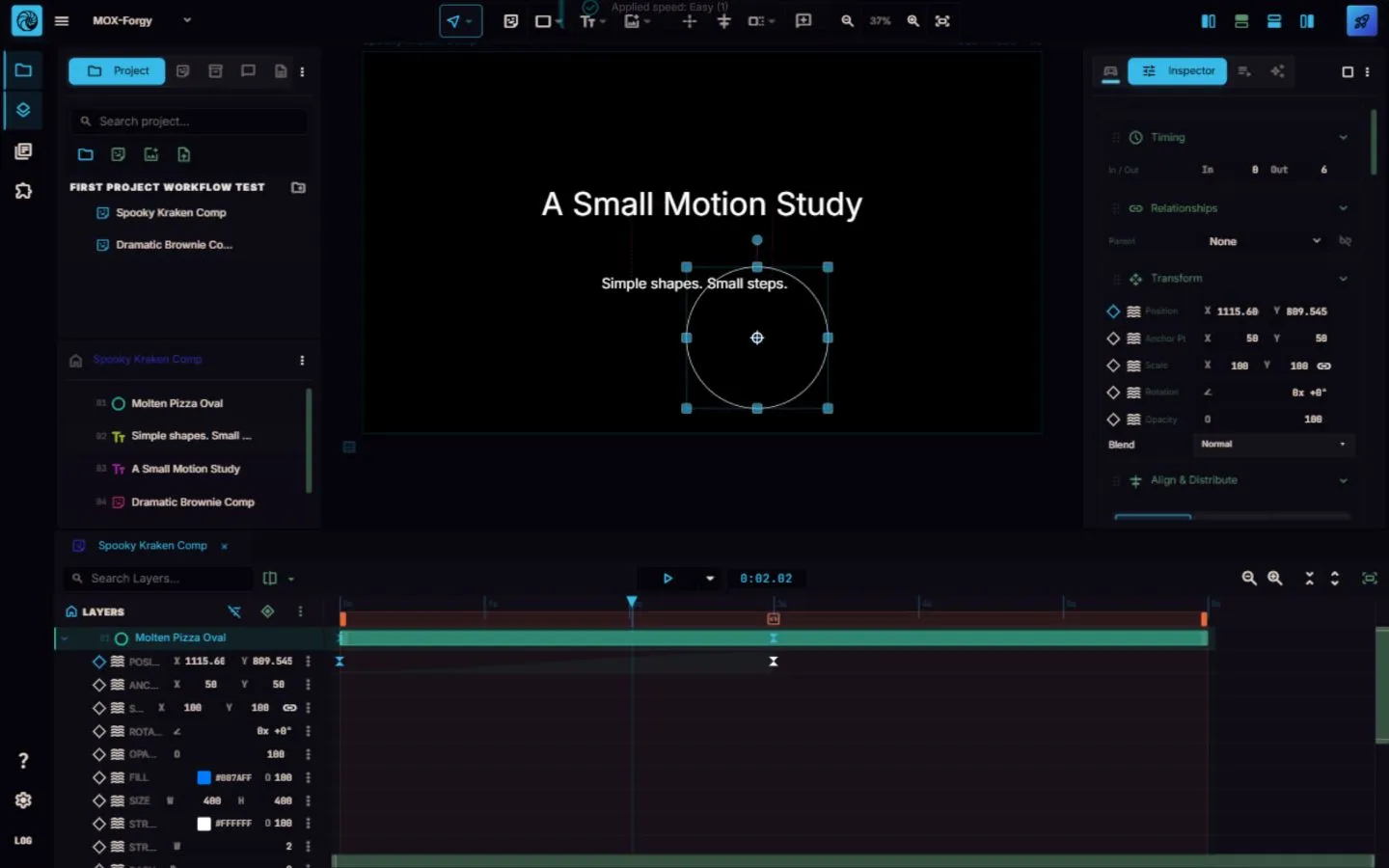
Consider a circle moving across a canvas. Its first Position keyframe records where the circle starts. Move the playhead later on the timeline, change the circle’s Position, and a second keyframe records where it should end. Between those two states, the software normally interpolates the movement; a hold or step setting would keep the first value until the second keyframe.
This workflow was verified in a first-hand MOX Editor example: a circle’s Position was keyed at the start, changed later on the timeline, and the later keyframe was retimed. An Easy easing setting was applied to the selected keyframe. Easing generally controls how an interpolated change accelerates or slows down. The example demonstrates the core relationship between a layer, the timeline, Position keyframes, timing, and easing.
The same pattern can animate other kinds of designed elements. A headline can move into place, a logo can scale up, or a shape can fade in. The important part is to make each change purposeful and easy to read.
Where motion graphics are used
Motion graphics appear wherever information or identity benefits from clear visual movement. Common uses include:
- social media posts and short-form promos;
- advertising and product videos;
- explainer videos;
- branding and logo animation;
- titles and lower thirds;
- presentations and data visualization;
- websites, product tours, and UI demonstrations.
What makes motion graphics feel good?
Good motion graphics are not defined by how many elements move at once. A few principles usually matter more:
- Timing: give an action enough time to be seen without making it drag.
- Spacing: use distance and position changes that support the intended movement.
- Easing: avoid making every movement feel mechanically constant.
- Hierarchy: make the most important information appear first or stand out most clearly.
- Consistency: repeat compatible type, color, shape, and motion decisions.
- Restraint: leave room for the message instead of animating every possible property.
These principles help motion feel deliberate. They also make a simple project easier to revise.
What tools are used for motion graphics?
Motion graphics can be created with several categories of tools, including timeline-based motion editors, compositing and motion-design applications, 3D tools, and browser-based motion editors. The appropriate tool depends on the project, the type of assets involved, and the level of control required.
MOX Editor is a browser-based motion video editor with layers, a visual timeline, and keyframes. It is one example of a browser-based tool for building animated graphic compositions.
How to start learning motion graphics
Start with one simple exercise rather than a complex scene:
- Create a basic shape.
- Set its initial Position.
- Move the playhead forward on the timeline.
- Change the Position to create a second keyframe.
- Preview the movement and compare a short duration with a longer one.
- Apply easing, then watch how the pacing changes.
This exercise teaches the essential loop: set a state, set another state, preview the change, and refine the timing.